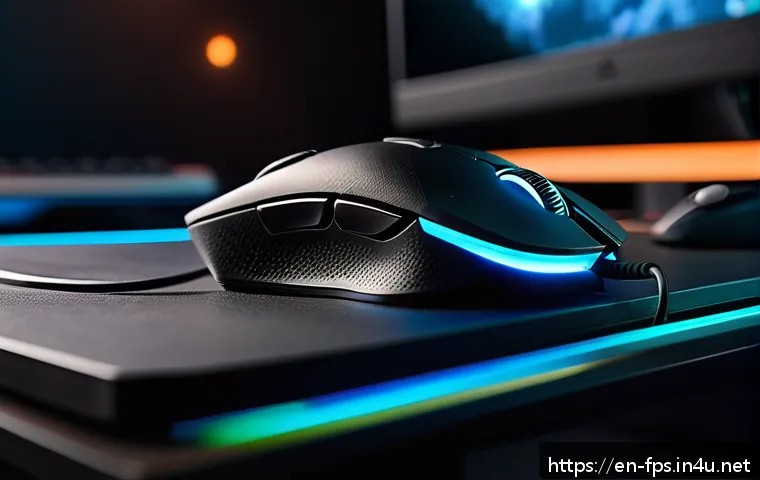
Lately, the gaming community has been buzzing about how fine-tuning DPI settings can drastically improve FPS gameplay. If you’ve ever felt your aim was just a fraction off during critical moments, you’re not alone.
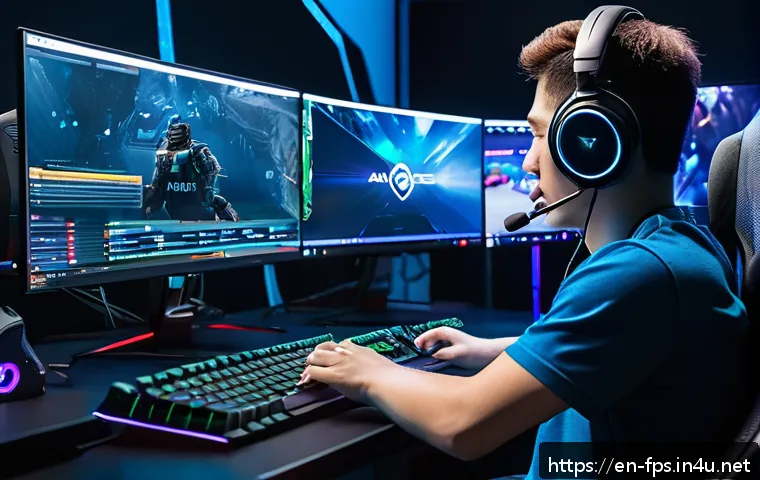
Getting your mouse sensitivity dialed in isn’t just a minor tweak—it can be a game-changer. Today, we’re diving into how mastering speed control through precise DPI adjustments can elevate your aiming skills to a whole new level.
Stick around, because this could be the secret weapon you’ve been searching for.
Finding Your Perfect Balance: Sensitivity and Accuracy
Understanding the Relationship Between DPI and In-Game Sensitivity
When it comes to aiming in FPS games, the DPI setting on your mouse is just one piece of the puzzle. DPI, or dots per inch, determines how far your cursor moves on screen relative to your physical hand movement.
But the in-game sensitivity setting also plays a huge role in how your aim feels. For example, a high DPI combined with a low in-game sensitivity can give you smoother, more precise control, while the opposite might make your movements feel twitchy or jittery.
From my experience, finding the right combo is a bit like tuning a guitar — it takes some trial and error to get the sweet spot that matches your playstyle and comfort.
Why Lower DPI Isn’t Always Better
A lot of players jump to lower DPI settings thinking it’ll boost accuracy, but that’s not always the case. Extremely low DPI means you have to move your arm more for small cursor movements, which can be tiring and slow, especially in fast-paced matches.
Conversely, very high DPI can make your aim too sensitive, leading to overshooting targets. I noticed that after experimenting with different settings, moderate DPI values paired with fine-tuned in-game sensitivity gave me the best balance between speed and precision.
It’s all about customizing to your muscle memory and reaction times.
How Muscle Memory Shapes Your DPI Preference
Once you settle on a DPI setting, your brain and muscles start adapting to that sensitivity. This muscle memory is crucial in high-pressure situations like clutch rounds or sniper shots.
I found that changing DPI too often resets this adaptation, causing inconsistent aiming. Sticking with a DPI for a few weeks and practicing helps develop a natural flow, making your aiming feel more instinctive.
So, don’t be tempted to constantly tweak your DPI; consistency often beats chasing the “perfect” setting.
Customizing DPI Profiles for Different Scenarios
Setting Up Multiple DPI Profiles for Flexibility
Many modern gaming mice allow you to set multiple DPI profiles and switch between them on the fly. I started using this feature to adapt to different game modes or weapons.
For instance, a low DPI profile when sniping offers precision, while a higher DPI profile for close-quarters combat allows faster turning and reaction.
This flexibility can be a huge advantage once you get comfortable toggling between profiles mid-game.
Using DPI Shift Buttons Efficiently
Some mice come with DPI shift buttons that temporarily change your DPI while held down. This is a neat trick I picked up to improve accuracy without sacrificing speed.
When lining up a critical headshot, holding the DPI shift button lowers sensitivity for finer control, then releasing it returns you to your normal speed.
It feels natural after some practice and can turn those clutch moments in your favor.
How to Avoid Common DPI Profile Mistakes
A common pitfall is setting DPI profiles too far apart in sensitivity, which can make switching jarring and throw off your aim. I learned to keep my DPI profiles within a reasonable range and gradually adjust them rather than making drastic leaps.
Also, make sure your in-game sensitivity adjusts accordingly to maintain consistency. Testing each profile in training modes or aim trainers before jumping into ranked matches helps avoid surprises.
Optimizing Windows and Game Settings Alongside DPI
Why Windows Pointer Speed Matters
Many gamers overlook the Windows pointer speed setting, but it can hugely affect how your mouse behaves. By default, Windows applies a pointer acceleration curve which can interfere with your DPI settings and make aiming inconsistent.
Disabling “Enhance pointer precision” in the mouse settings ensures your DPI translates 1:1 in-game, giving you predictable control. Personally, this was a game-changer for me when I first disabled it; my aim felt much more reliable.
Matching In-Game Sensitivity to DPI for Consistency
Once Windows pointer acceleration is disabled, it’s important to match your in-game sensitivity to your DPI for consistent feel. Many pros recommend calculating your cm/360, which is how many centimeters you need to move your mouse to do a full 360-degree turn in-game.
This metric helps you compare your sensitivity with other players and keep it steady across games. I use this method to maintain a consistent aim whenever I switch games or update settings.
Adjusting Polling Rate for Responsiveness
Polling rate, measured in Hz, indicates how often your mouse reports its position to the computer. Higher polling rates (like 500Hz or 1000Hz) can reduce input lag, making your aim feel more responsive.
I switched from 125Hz to 1000Hz polling rate and instantly noticed smoother tracking and faster reactions. Just make sure your PC can handle it, as older systems might see diminishing returns.
How Grip Style Influences DPI Choices
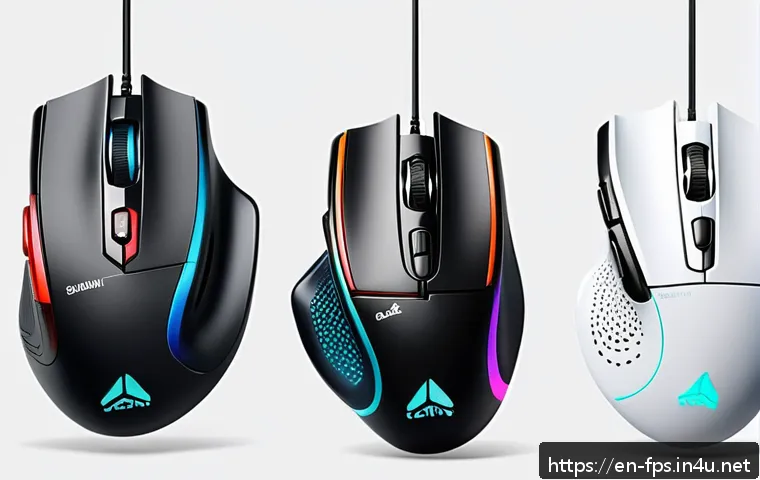
Comparing Palm, Claw, and Fingertip Grips
Your grip style on the mouse can impact your preferred DPI setting. Palm grip users tend to move the whole hand, so lower DPI with larger arm movements feels natural.
Claw grip players often prefer moderate DPI for quick flicks, while fingertip grip users rely on small finger movements and might lean towards higher DPI for speed.
When I switched from palm to claw grip, I had to lower my DPI to regain precision — it’s definitely worth experimenting based on how you hold your mouse.
Why Grip Comfort Affects Aim Precision
Comfort is often underestimated but plays a huge role in aiming consistency. If your grip style causes hand fatigue or discomfort, your aim will suffer no matter how optimized your DPI is.
I made it a habit to take breaks and stretch my hand during long gaming sessions to avoid cramps. Also, choosing a mouse shape and size that fits your grip style well can dramatically improve your control and accuracy.
Adjusting DPI for Different Grip Styles
Once you identify your grip style, try adjusting your DPI in small increments. For palm grip, start low around 400-800 DPI; claw grip players might test 800-1600 DPI; fingertip grip users can experiment above 1600 DPI.
Remember, these are just starting points — your personal comfort and aiming results are the final judge. Don’t rush the process, and keep fine-tuning as you get more familiar with your style.
Tracking Progress with DPI and Aim Training
Using Aim Trainers to Test DPI Settings
Aim trainers like Kovaak’s or Aim Lab are fantastic tools to objectively measure how different DPI settings affect your accuracy, reaction time, and tracking.
I’ve personally used these trainers to test new DPI configurations and see which ones improve my target acquisition speed and precision. They provide detailed stats and heatmaps that reveal subtle aiming issues, helping you make data-driven adjustments rather than guesswork.
Keeping a DPI Adjustment Log
Since DPI tweaking is iterative, keeping a simple log of your settings and performance can be invaluable. Write down your DPI, in-game sensitivity, and how you felt during practice or matches.
After a week, review the notes to identify trends. I found this approach helped me avoid going back to old habits and track which settings truly improved my gameplay over time.
Recognizing When to Change Your DPI
It’s tempting to constantly fiddle with DPI after every game, but sometimes aiming issues stem from other factors like positioning, game sense, or even hardware wear.
If you notice persistent aiming problems despite consistent practice, it might be time to re-evaluate your DPI. However, if your performance is improving steadily, stick with your current settings until you hit a plateau.
Essential DPI Settings Overview for FPS Gamers
| DPI Range | Typical Use Case | Pros | Cons |
|---|---|---|---|
| 400-800 | Sniping, Precision Shots | High accuracy, better control | Requires larger hand movement, slower turns |
| 800-1600 | General FPS Play, Mixed Combat | Balanced speed and precision | May feel inconsistent if sensitivity not matched |
| 1600+ | Fast-paced Combat, Close Quarters | Quick turns, faster reaction | Can cause overshooting, less precision |
This table summarizes common DPI ranges and their typical applications in FPS gaming. Experiment within these ranges while tuning your in-game sensitivity to discover what fits your style best.
Remember, the goal isn’t to copy pros blindly but to find what feels intuitive and comfortable for you.
Conclusion
Finding the perfect balance between DPI and in-game sensitivity is a personal journey that requires patience and experimentation. Consistency and comfort often outweigh chasing extreme settings, allowing muscle memory to develop naturally. By understanding your grip style and customizing profiles, you can optimize your aiming performance across different scenarios. Remember, the ultimate goal is to create a setup that feels intuitive and enhances your gameplay experience.
Helpful Tips
1. Always disable Windows pointer acceleration to ensure your DPI settings translate accurately in-game.
2. Use aim trainers regularly to objectively evaluate how different DPI settings affect your accuracy and reaction time.
3. Keep a log of your DPI and sensitivity adjustments alongside your performance notes to track what truly works.
4. Experiment with multiple DPI profiles for various weapons or game modes to stay flexible during matches.
5. Prioritize comfort and grip style when selecting DPI ranges, as these factors greatly influence precision and fatigue.
Key Takeaways
Choosing the right DPI setting involves balancing sensitivity with control, tailored to your unique playstyle and muscle memory. Avoid frequent DPI changes to build consistency and instinctive aiming. Leveraging multiple DPI profiles and shift buttons can give you an edge in different combat scenarios. Don’t overlook system settings like Windows pointer speed and polling rate, as they directly impact responsiveness. Ultimately, continuous practice combined with thoughtful adjustments will lead to steady improvement and more satisfying gameplay.
Frequently Asked Questions (FAQ) 📖
Q: uestions about DPI Settings for FPS GamingQ1: What exactly is DPI, and why does it matter for FPS games?
A: DPI stands for Dots Per Inch, which measures how sensitive your mouse is. The higher the DPI, the faster your cursor moves across the screen with less physical hand movement.
In FPS games, this sensitivity directly affects your aiming precision. If your DPI is too high, tiny hand tremors can throw off your shots; too low, and you might struggle to turn quickly.
Finding the right DPI helps balance speed and accuracy, making your aim more consistent during those clutch moments.
Q: How do I find the best DPI setting for my playstyle?
A: There’s no one-size-fits-all answer, but a good starting point is to pick a DPI between 400 and 800, which many pro players prefer. Then, adjust your in-game sensitivity to complement that DPI.
I personally experimented with different settings and found that a lower DPI combined with moderate in-game sensitivity gave me smoother control and better target tracking.
The key is to test in practice modes or aim trainers and see what feels most natural and accurate for you.
Q: Will changing my DPI really improve my aiming skills instantly?
A: Changing DPI isn’t a magic fix that instantly makes you a sharpshooter, but it lays the foundation for better aim. From my experience, dialing in the right DPI reduced my over-aiming and helped me land shots more consistently after a few hours of practice.
It also made recoil control easier. Think of DPI tuning as setting your gear correctly—once it’s optimized, your muscle memory and reflexes can perform at their best.
So yes, it can significantly improve your gameplay, but patience and practice are still essential.